I’ve always struggled. I always felt like I was catching up and never ahead. My memory is chaos. My to-do lists are black holes. The stickies on my monitor might as well be a foreign language because I forgot what I wrote “Call Jackie” for. Raising more questions than answers.
Whose Jackie? What do I call her about? When did I write this? WHY did I write this? Oh, and, this sticky has been here for a month, probably, but it wasn’t immediately important then so I’ve now blocked it out of my mind and never looked at it until now.
That was helpful… If only I had somewhere I could put these quick reminders.
Oh, hey, I found one! Windows has sticky notes! Let’s open that up!
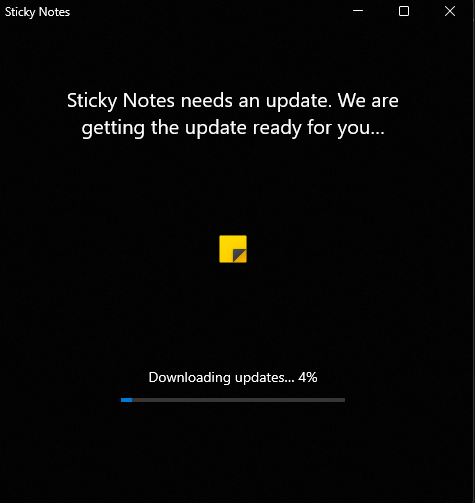
… What?
Why would my sticky notes need an update? And I now forgot what I needed to jot down after waiting 15 minutes for that update to finish. And after logging in, with a corporate account I can’t access from home and I can’t log in with my personal account at work… Where does it even save them? OneNote? Oh sure, I’ll just open OneDrive, log in, Open OneNote, Log in, Turn on sync with Sticky Notes, re-open sticky notes, and finally write down that reminder I needed from that quick request from my boss that was now 15-30 minutes ago.
“Call Jackie”
Ah… Well… I’m sure I’ll remember why I have to call her later. Right?
Ok, so, that didn’t work. I need a real solution. So, I app-hopped.
Todoist. Notion. Anytype. Microsoft To Do. Obsidian with seventeen different plugins (and a vibe-coded self-hosted web server to sync the dang thing because you have to pay for syncing!!!) Evernote. OneNote. I tried them all. Each one promised to be the one—the app that would finally organize my brain, tame my chaos, make me productive.
None of them worked. They made it worse.
See, the problem is I don’t work where I can just bring my laptop everywhere with me. I don’t have my phone on me. So what do I do? I have to bring a notebook everywhere. I can’t even read that sticky note whether it was on my monitor or on OneDrive if I can’t access them in the meetings. If I have a meeting that takes up my morning, and we go straight to lunch, how do I remember I had something to do at noon? I wrote it on the sticky on my monitor; it was supposed to remind me!
I needed something physical. Not tied to the internet. Not relying on a laptop or phone. Not waiting on updates when I open it. All these apps are 100% digital. Online. I need a hybrid.
Then the most insane thing happened: I stopped looking for the perfect app. Instead, I built one.
The Problem I Solved for Myself
Here’s what I actually needed, boiled down to the bones:
A way to know what I’m doing today without opening anything. No login, no startup time, no syncing. I needed to print my day in the morning and actually look at the paper in my hands. Not my phone. Not my laptop. Paper.
Something that doesn’t clutter the past with guilt. I didn’t want to see last week’s unfinished tasks haunting me. But I also didn’t want to lose the record of what I’d actually accomplished when it came time for a review.
A system that fits real life. I spend my day in meetings, in calls, in places where dragging a laptop isn’t an option. I needed something that worked on a clipboard.
Recurring work that just shows up. Medication reminders. Daily checklists. The things that come back every single day shouldn’t need to be re-entered. They should reset and be ready tomorrow.
Nothing out there did all of this. Nothing came close. So I stopped waiting for the perfect app and decided to build what was actually in my head.
Enter AI – Claude to the rescue!
I’m not a coder. I can write some JavaScript, fumble through Python, and understand how things work at a conceptual level. But I’m not the kind of person who sits down and builds a full application from scratch.
I had an idea, but I also don’t know what I want until I see it and decide if I like it or not. So I couldn’t just offload it to someone on Fiverr or something. I needed to work through it myself, for myself.
This app needed to solve MY problems. Not John’s, not Suzy’s, just me. I need it to work with my use, but… I also needed to make something I could show off. I need some sort of incentive to make it pretty!
What Came Out: TumbleBook
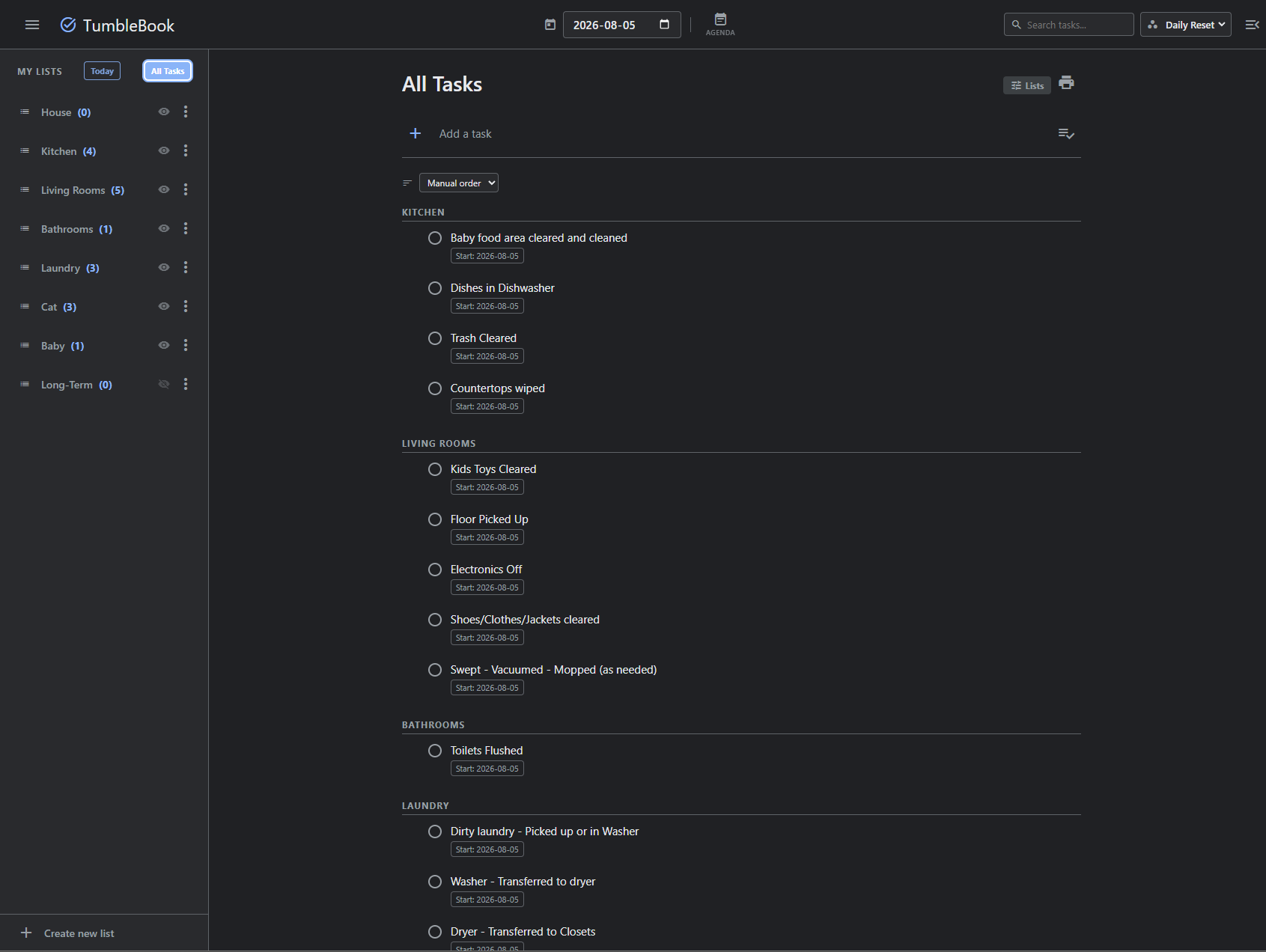
The result is TumbleBook. It’s simple because it has to be.
One HTML file. No installation. No servers. No accounts. No data going anywhere but your browser’s local storage. You can run it offline, from a USB stick, from a network share—anywhere you can open a browser.
Built for the actual way I work. The printing options let me choose: print landscape for a clipboard, portrait for a full page, or tumble-fold it into a booklet I can carry in my pocket. Every printout is dated. When I find a note I scrawled three weeks ago, I know exactly when I wrote it.
Daily reset that matters. Each morning, the system takes a snapshot of yesterday—everything marked exactly as I left it. That backup becomes part of a record. Throughout the year, I’m building a trail of evidence of what I actually did. When it’s time for a performance review or I’m trying to remember if I followed up on something, I have that record.
Recurring work that doesn’t pile up. Medication reminders, opening checklists, daily habits—they reset automatically, already dated for today, ready to go.
Counter boxes for tallying. Some days I need to track how many calls I took, how many emails I processed, how many interruptions derailed me. Instead of cluttering the task list, there are small boxes in the header. Tick and move on.
A schedule that actually shows time. If I have a two-hour meeting, it takes up twice the space as a one-hour meeting. It’s drawn on an hourly grid so I can see what my day looks like at a glance.
Tags and linked tasks. Connect related tasks across different lists without moving them. If “fix the shower drain” links to “buy drain cleaner” in shopping, either task shows the other.
An Analytics companion. All those daily backups accumulate. The Analytics tool loads them, deduplicates them, and shows me what actually happened. Filtered by list, by tag, by date range. A real look at productivity over time.
It’s not complicated. That’s the point.
Why This Matters (And Why You Should Do It Too)
I’m not special. I’m not a genius. I just got tired of waiting for someone else’s solution to work for me.
Commercial apps are designed for everyone, which means they’re perfect for no one. Every feature is a compromise. Every workflow is someone else’s interpretation of how you should work. TumbleBook is designed for me—how I actually work, when I actually work, what I actually need.
My data is mine. There’s no sync cloud (until I choose to back up). There’s no free trial that converts to a subscription. There’s no algorithm deciding what’s important. Just me and my tasks.
I can modify it. TumbleBook doesn’t do something the way I want? I can ask Claude how to change it. Half an hour later, it does what I need.
It cost me time, not money. No subscriptions. No paying for features I don’t use. I paid for AI assistance (which I’d be using anyway), and the rest was my time.
It’s actually productive. Here’s the thing nobody tells you: the process of building something you need teaches you exactly what you need. Halfway through building TumbleBook, I realized I didn’t need half of what I thought I’d need. The app that came out is simpler, cleaner, and actually useful in a way that Notion-with-seventeen-plugins never was.
The Real Magic
The magic is that I stopped waiting for someone else to solve my problem and solved it myself.
I’m not drowning anymore. My brain doesn’t feel like chaos. I print my day, carry it on a clipboard, check off tasks in pen, and at the end of the day I know exactly what I did. In the morning, everything resets. My recurring things are ready. My record from yesterday is backed up.
I’m productive. I’m organized. I’m in control.
Open Source and Sharing
TumbleBook is open source (MIT license) and available on GitHub. You can use it as-is, modify it for your needs, or use it as inspiration to build something better for yourself.
The goal was never to build something to sell. It was to solve my own problem. If it helps you too, that’s a bonus.
Leave a Reply